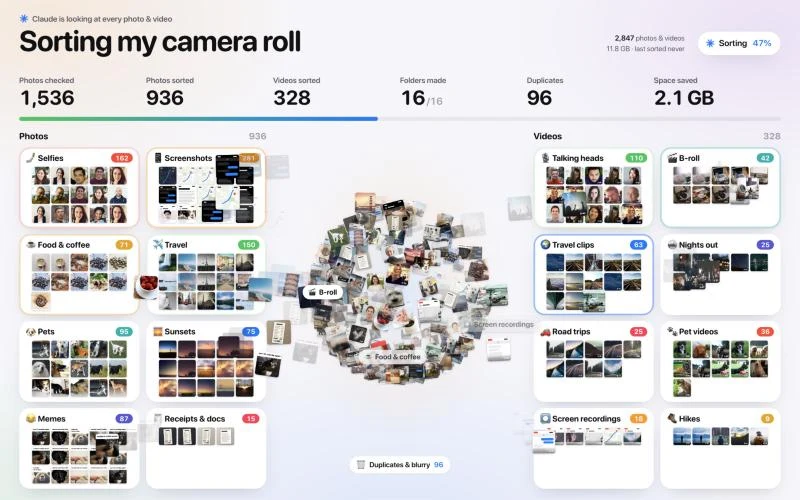
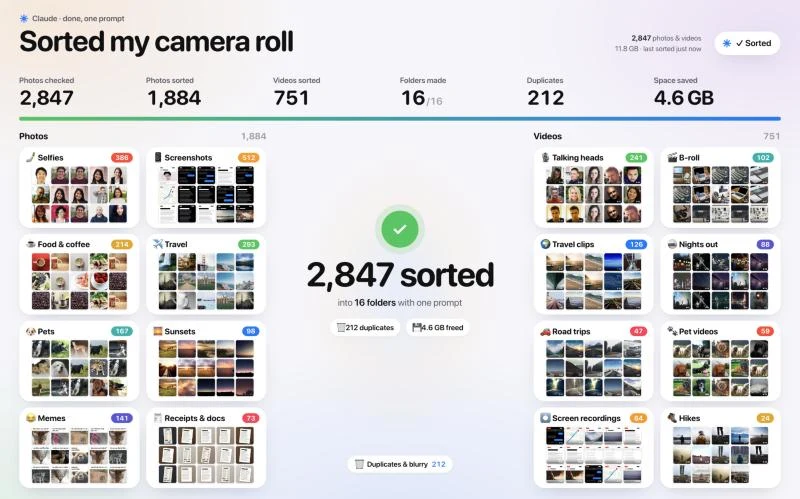
Claude looks at every photo and video, makes 15–18 folders that fit what's actually in there and moves each file into the right one. Duplicates and blurry shots go into a review folder. Nothing gets deleted.
You commented SORT. Here's the exact prompt from the reel and the 5-minute setup.
By Artem Novitckii · October 31, 2026 Works on a Mac · Needs Claude Code · About 5 minutes to set up
The reel visual: every photo flying into its folder.
01Export your photos
02Install ffmpeg
03Open Claude Code
04Paste the prompt
05Claude sorts
06Check _Review
Chapter 01
Export your camera roll.
Claude works with files, so first copy your photos into a normal folder. Your originals stay in Photos untouched.
Make a new folder on your Desktop called CameraRoll.
Open the Photos app and select everything with Cmd + A.
Go to File → Export → Export Unmodified Original and pick the CameraRoll folder.
Photos on your iPhone show up here too if iCloud Photos is on. If not, AirDrop them to your Mac or use the Image Capture app.
Chapter 02
Set up Claude Code.
You need Claude Code and ffmpeg, which lets Claude grab a frame from each video so it can see what's in it. Open the Terminal app and run:
Terminal
brew install ffmpeg
cd ~/Desktop/CameraRoll
claude
No Homebrew yet? Install it first from brew.sh. It's one line to copy and paste.
Chapter 03
The prompt.
Copy all of it, paste it into Claude Code and let it run. It shows you the folders it picked before it starts moving files.
Prompt
# Sort my camera roll

## Your role
You're my photo librarian. You can run shell commands on my Mac and look at images.
Goal: every photo and video ends up in a folder where I can find it later.

## Context
- My camera roll is exported to ~/Desktop/CameraRoll (2,000–10,000 files).
- File types: .HEIC .JPG .PNG .MOV .MP4 (match extensions in any case).
- Some files are copies, like "IMG_4821 2.HEIC" or "IMG_4821(1).HEIC".

## Hard rules
1. NEVER delete my files. Only move them with `mv`. If unsure, use _Review/.
2. Keep original filenames and dates. No renaming, no re-encoding.
3. Work in batches of 50. After each batch, append to sorted.csv:
   file, folder, confidence (0–1), one-line reason
4. If you get interrupted, resume from sorted.csv. Never sort a file twice.

## Step 1: Make previews so you can see every file
mkdir -p .previews
for f in *.HEIC *.JPG *.PNG; do sips -Z 512 -s format jpeg "$f" --out ".previews/$f.jpg"; done
for v in *.MOV *.MP4; do ffmpeg -loglevel error -ss 1 -i "$v" -frames:v 1 -vf scale=512:-1 ".previews/$v.jpg"; done

## Step 2: Pull out duplicates and junk first
- Exact copies (same `shasum -a 256`): keep the oldest, move the rest to _Review/duplicates/
- Blurry, black or pocket shots, thumb over the lens: move to _Review/blurry/

## Step 3: Design the folders
Look at a random sample of 150 previews, then pick 15–18 folders that fit THIS library.
Start from this list and change it to match what you actually see:
  Photos: Selfies, Screenshots, Food & coffee, Travel, Pets, Sunsets, Memes, Receipts & docs
  Videos: Talking heads, B-roll, Travel clips, Nights out, Road trips, Pet videos, Screen recordings
Show me the list with 3 example files each, then keep going without waiting.

## Step 4: Sort everything
For each file: open its preview, pick the folder, then `mv` the original there.
- Screenshots go by what's in them (a receipt screenshot goes to Receipts & docs).
- Videos under 3 seconds with nothing happening go to _Review/blurry/
- Confidence below 0.6 goes to _Review/unsure/

## Step 5: Report back
When everything is sorted, show me a table:
| Folder | Files | Size |
Then tell me: total files moved, duplicates found, GB sitting in _Review,
and the 10 files you were least sure about.
The only thing you may delete is the .previews folder you made.
Chapter 04
Good to know.
Start small. Claude really looks at every image, which uses a lot of your plan. Try one month of photos first (a few hundred files), then run the rest.
Nothing gets deleted. Files are only moved, and anything Claude isn't sure about lands in _Review for you to check.
You can stop anytime. Every move is logged in sorted.csv, so the next run picks up where it left off.
Want different folders? Change the list in Step 3 of the prompt: Kids, Work, Wedding, Gym, whatever fits your life.
What a finished sort looks like.
Get the camera roll prompt
Unlock the full prompt and setup, plus every other resource in the library. Free, one email a week, unsubscribe anytime.
Moshn / AI automation agency
Want AI automation built for your business?
Moshn builds AI systems around the tools your team already uses, from lead qualification and follow-ups to onboarding and reporting.
Book a call. Tell us what your team is doing manually, and we'll show you what can be automated.