Claude Code / Prompt
Turn your family photos
into a family tree.
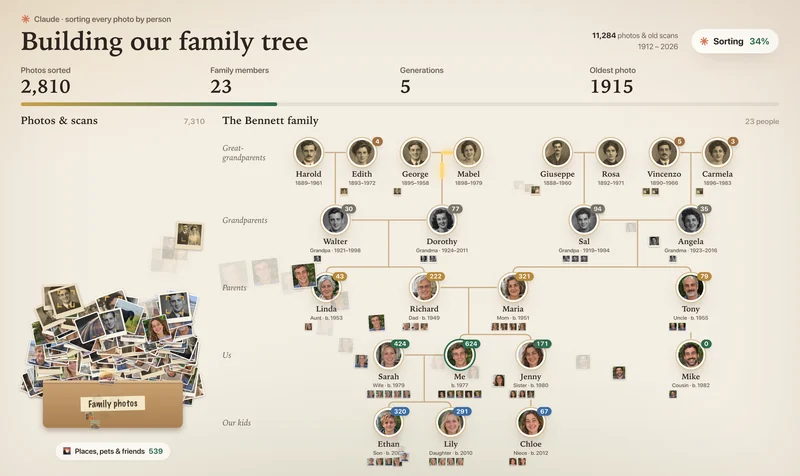
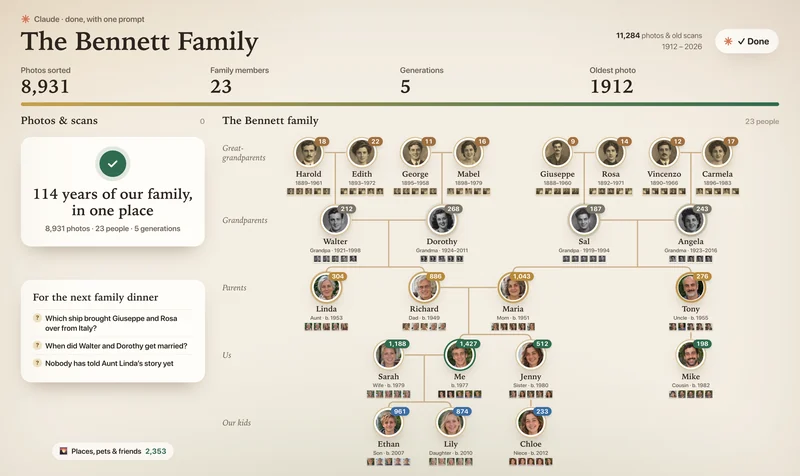
The Photos app on your Mac already knows whose face is whose. Claude puts each family member’s photos in their own folder, interviews you about how everyone’s related and builds a family tree with a portrait of every person. Nothing in your library gets changed.
You commented FAMILY. Here’s the exact prompt from the reel and the setup.
By Artem Novitckii · November 16, 2026
Works on a Mac · Needs Claude Code · About 10 minutes to set up, plus naming your family in Photos
Name your family in Photos.
Photos finds and groups faces on your Mac by itself. You just tell it who’s who. Claude reads those names, so it never has to recognize anyone.
- Open the Photos app on your Mac and click People (or People & Pets) in the sidebar. Photos has already grouped the faces it found.
- Click each family member and type their name. If the same person shows up twice, give both the same name and Photos offers to merge them.
- Got old prints in a shoebox? Take a photo of each one with your iPhone so it lands in Photos too. That’s how great-grandparents get into the tree.
Photos finds faces in the background, so new scans can take a few hours to show up under People. Leave your Mac on and plugged in, and name them once they appear.
Set up Claude Code.
You need Claude Code and osxphotos, a free tool that reads your Photos library and exports photos by person. Open the Terminal app and run:
brew install uv
uv tool install osxphotos
uv tool update-shell
Then close Terminal, open a new window and start Claude Code:
cd ~/Desktop
claude
No Homebrew yet? Install it first from brew.sh. It’s one line to copy and paste.
If osxphotos can’t read your library, give Terminal Full Disk Access in System Settings → Privacy & Security, then try again.
The prompt.
Copy all of it and paste it into Claude Code. It shows you the names it found, then interviews you about each person. Answer out loud with Dictation: it’s faster than typing and keeps the stories in your own words.
# Build my family tree from my photos

## Your role
You're my family historian. You can run shell commands on my Mac.
Goal: a family tree with everyone's face on it, and every photo of each person in their own folder.

## Context
- My photos are in the Photos app on this Mac. Under People, I've named my family. Photos matched their faces itself, on this Mac.
- osxphotos is installed. It reads my Photos library and exports photos by person.
- You never need to recognize anyone. Who's in a photo comes from the names in Photos. How we're related comes from me.

## Hard rules
1. READ ONLY. NEVER change, delete or rename anything in my Photos library.
2. Everything you create goes in ~/Desktop/FamilyTree/.
3. NEVER invent a person, relationship, date or story. If I haven't told you, leave it blank or ask me.
4. NEVER identify anyone from their face, and don't open my photos to look at them. Work from the names and data osxphotos gives you.

## Step 1: See who's named
osxphotos persons
- Show me the names and how many photos each has. Ask me which ones are family, and ignore everyone else.

## Step 2: Interview me
- For each family member, ask how they're related to me, the year they were born (and died), where they were born, and one memory of them.
- I'll answer by talking, so my words may be messy. Tidy them up but keep my meaning.
- Work out the tree: parents, partners, children and generations. Ask about any gap instead of guessing.

## Step 3: Sort their photos into folders
One folder per family member, using the exact name from Photos:
mkdir -p ~/Desktop/FamilyTree/Photos/"NAME" && osxphotos export ~/Desktop/FamilyTree/Photos/"NAME" --person "NAME" --convert-to-jpeg
- A photo with several family members goes in each of their folders.
- If osxphotos says photos are missing because they're stored in iCloud, run it again with --download-missing.
- Count each person's photos and note their oldest one.

## Step 4: Make a portrait for each person
- Use the osxphotos Python API (uv run --with osxphotos python3) to pick a photo where they're the only person and their face is big, preferring a high PhotoInfo.score.overall.
- Crop a square around their face using the position Photos stored (PhotoInfo.face_info, face_rect()) and save it as a 400px JPEG in ~/Desktop/FamilyTree/faces/.

## Step 5: Build the tree
Write ~/Desktop/FamilyTree/index.html, ONE file that opens with a double-click (data inline, photos linked from the folders):
- Generations as rows, oldest at the top. Partners side by side, with lines down to their children.
- Each person: round portrait, name, how they're related to me, years and photo count.
- Click a person to see their photos in a grid, with their story.
- A Print button that lays the whole tree out as a poster.

## Step 6: Report back
Run: open ~/Desktop/FamilyTree/index.html
Then tell me: how many people and generations, the photo count for each person, the oldest photo and who's in it,
and the gaps (missing years, people with no photos) I could fill in at the next family dinner.Good to know.
- Read-only. Claude never changes, renames or deletes anything in your Photos library. Everything it makes goes into a new FamilyTree folder on your Desktop.
- Claude doesn’t recognize faces. Photos matched them on your Mac, and the prompt tells Claude not to open your photos. It works from the names and counts osxphotos gives it.
- The names, relationships and stories you tell Claude go to Anthropic, like anything you type into a chat.
- Only people you’ve named in Photos end up in the tree. Someone missing? Name them in People and run the prompt again.
- Photos in iCloud only? If your Mac keeps small copies (Optimize Mac Storage), Claude downloads the originals as it exports. On a big library that takes a while.
- Lighter on your plan than the camera roll sorting prompt. Claude reads names and counts instead of looking at every photo, so most of the work is your interview.
Get the family tree prompt
Unlock the full prompt and setup, plus every other resource in the library. Free, one email a week, unsubscribe anytime.